
After installing Hyper-V R2 I found that installing Remote Desktop Virtualization Host was a little tricky. Here are some of the steps required:
When you search for the available features on Hyper-V Server you can use DISM. For example “dism /online /Get-Features /Format:table”. This may give the following output:

As you can see from the above table, the "RDVH" is not listed. However, if you have ran Powershell and run the following commands you will be able to see the feature:
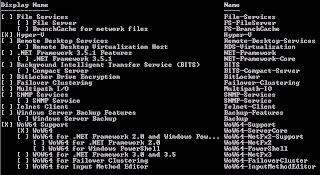
Now you can see the Remote Desktop Virtualization Host feature with a Name of RDS-Virtualization. You can now install the feature by typing the following:
When you search for the available features on Hyper-V Server you can use DISM. For example “dism /online /Get-Features /Format:table”. This may give the following output:

As you can see from the above table, the "RDVH" is not listed. However, if you have ran Powershell and run the following commands you will be able to see the feature:
- [PS] Import-Module ServerManager
- [PS] Get-WindowsFeature

Now you can see the Remote Desktop Virtualization Host feature with a Name of RDS-Virtualization. You can now install the feature by typing the following:
- dism /online /Enable-Feature /FeatureName:VmHostAgent (type this as written)
- [PS] Import-Module ServerManager
- [PS] Add-WindowsFeature –Name RDS-Virtualization
